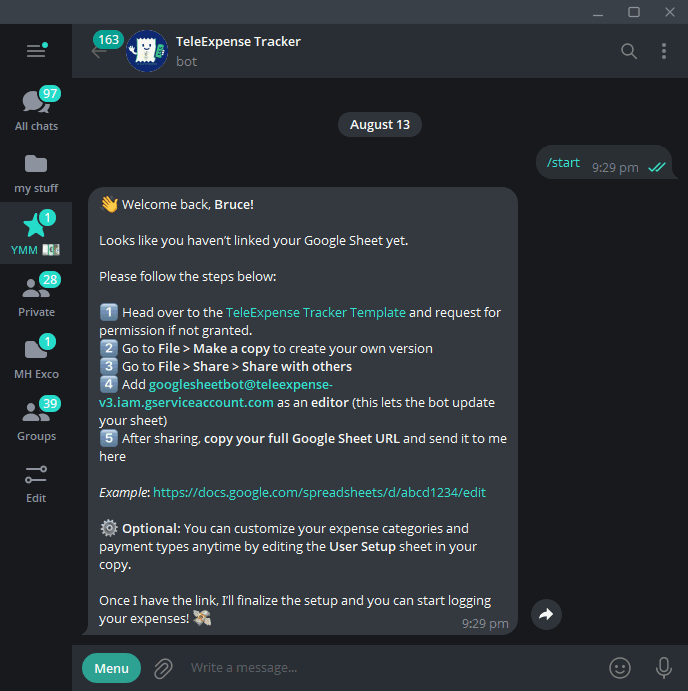
Open TeleExpense in Telegram and send:
/startFollow the instructions in Telegram to:
- 1Open the Google Sheets template provided by TeleExpense.
- 2Go to File → Make a copy to save your own copy in Google Drive.
- 3Share your copied Sheet with the email address shown in Telegram and give it Editor access.
- 4Copy the full URL of your Google Sheet and send it back to TeleExpense in Telegram.
Once the setup is confirmed, TeleExpense will be ready to save expenses directly to your Google Sheet.
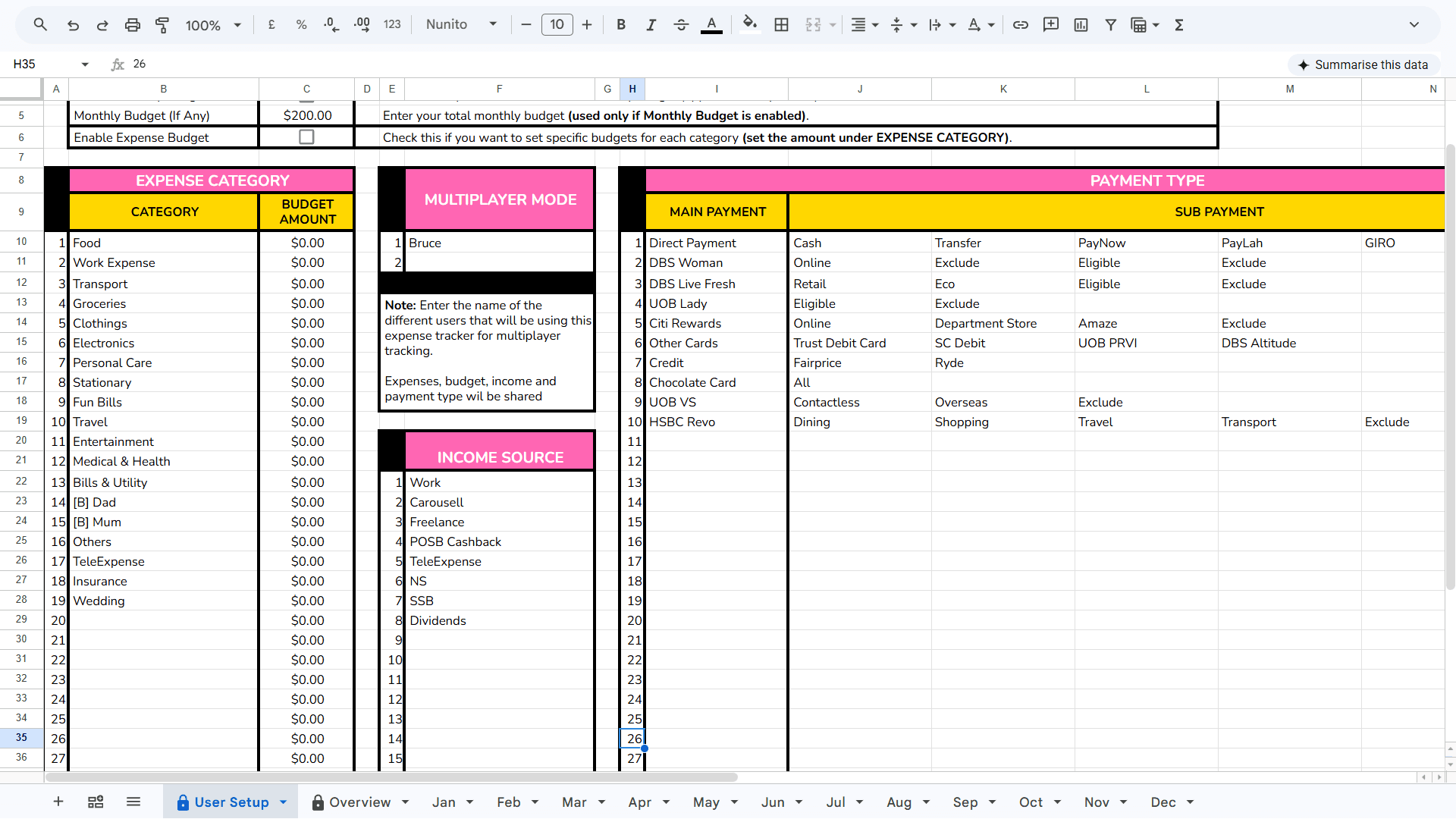
Open the User Setup tab in your copied Google Sheet and update the expense categories and payment types to match how you manage your spending.
For example, you can add categories such as Food, Transport, Shopping, and Bills, together with payment types such as Cash, PayNow, or Credit Card.
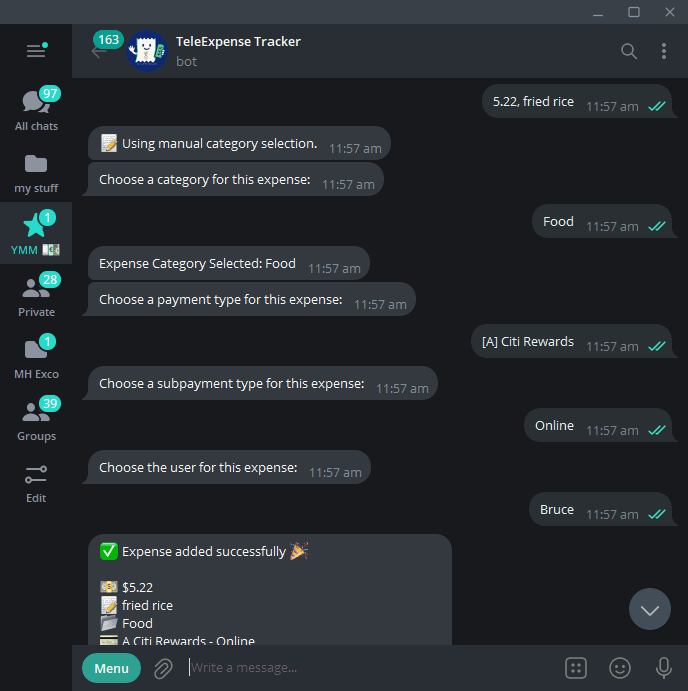
The fastest way to log an expense is to send the amount and description directly to TeleExpense:
/addexpenseEnter the amount first, followed by a comma and a short description. You can also use the guided command and follow the prompts:
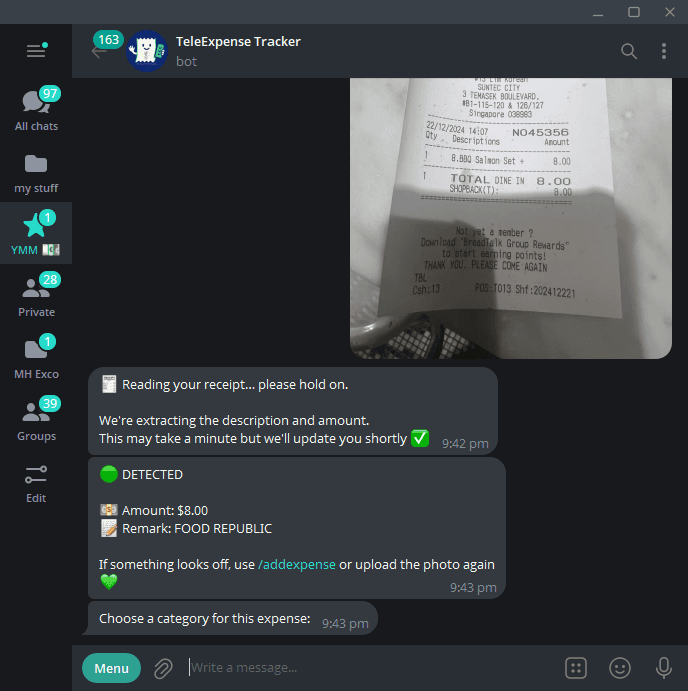
Prefer using a receipt? Send a clear photo directly to TeleExpense. It will extract the amount and description, then ask you to review the category and payment type before saving the expense to your Google Sheet.
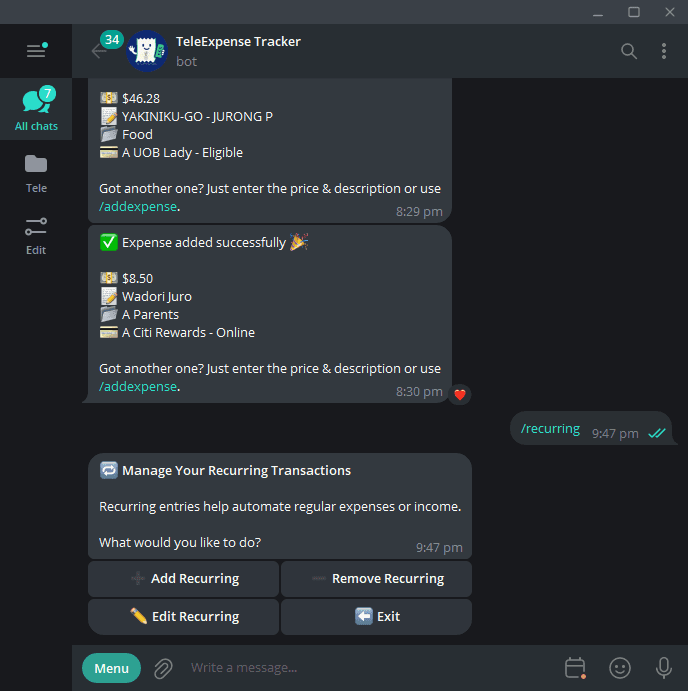
For regular payments such as subscriptions, insurance, rent, or salary, send:
/recurringChoose Add Recurring, select Expense or Income, and follow the prompts. Recurring expenses can be scheduled monthly, quarterly, every six months, or annually. Recurring income is added monthly.
TeleExpense will automatically add the transaction on the selected date and notify you when it has been logged. You can return to the same menu to edit or remove it.
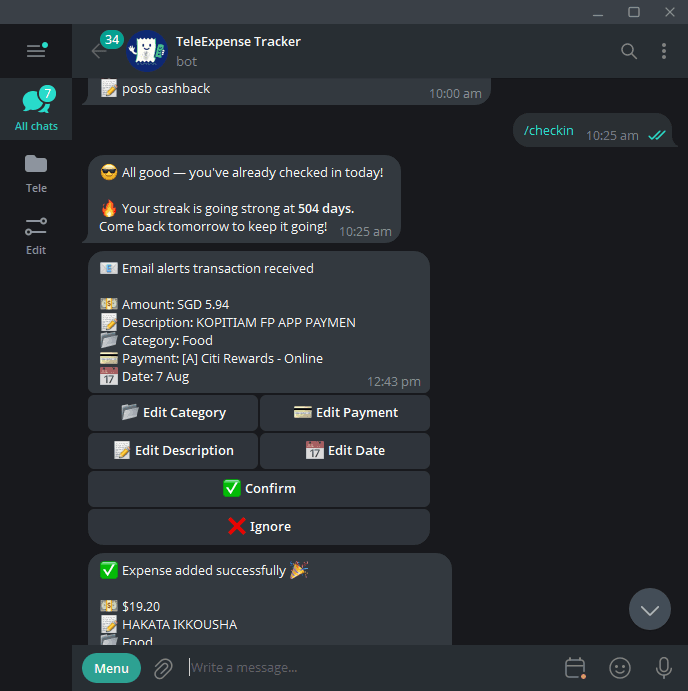
TeleExpense can turn supported bank transaction alert emails into ready-to-review expenses in Telegram. To generate your private forwarding address, send:
/emailaliasKeep this address private. Next, use the Email Auto-Logging Setup Guide to enable transaction alerts from your bank and create Gmail filters that forward supported alerts to your TeleExpense address.
When an alert arrives, TeleExpense prepares the expense in Telegram. Review the details and confirm it to save the transaction to your Google Sheet.
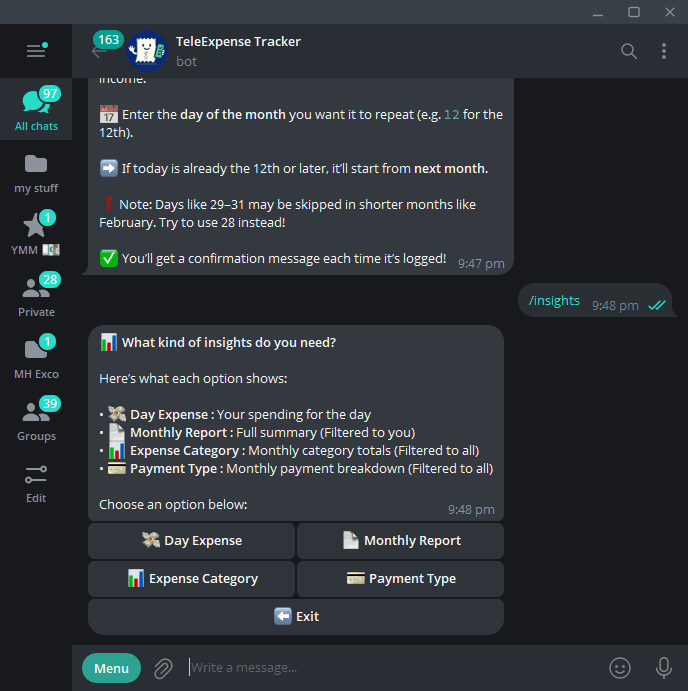
To check your spending without opening your Google Sheet, send:
/insightsDay Expense
View your expenses for today or another date.
Monthly Report
Generate a complete summary for a selected month.
Expense Category
See how much was spent in each category.
Payment Type
View spending by payment method.
Follow the Telegram prompts to select the date, month, or report you want. When checking today's transactions, enter tdy as a shortcut.
Ready to start tracking?
Open TeleExpense in Telegram and send /start to connect your Google Sheet. Once connected, logging an expense can be as quick as sending 10, fish and chips.