Back to all banks
How to automatically track OCBC transactions
Use this guide to send transaction alerts to the Gmail inbox you will forward from. TeleExpense prepares supported alerts in Telegram for review before you save confirmed records to Google Sheets.
Ready to viewLast updated: 2026-05-16
Step 1
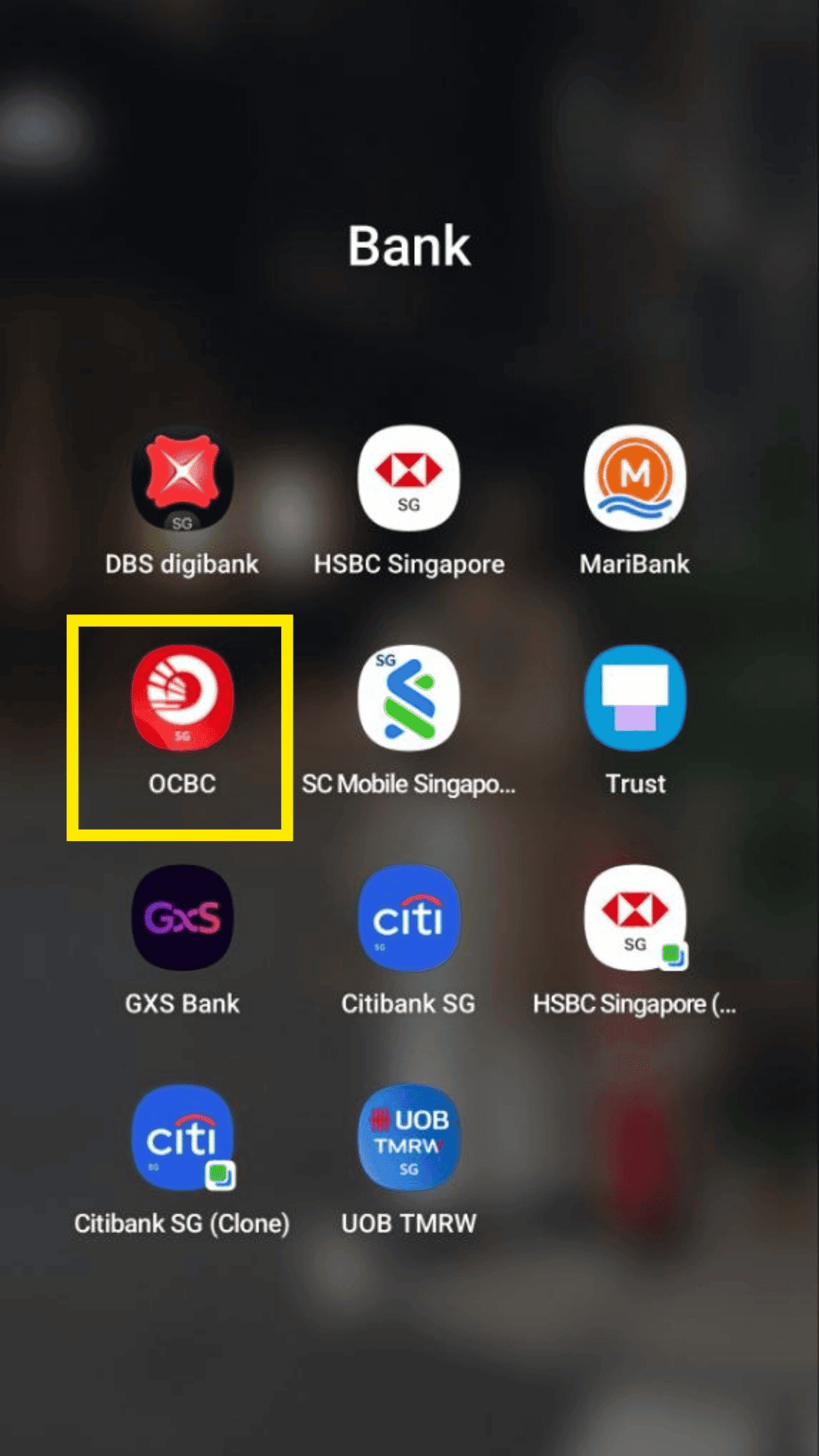
Open and login to your OCBC mobile banking app.
Step 2
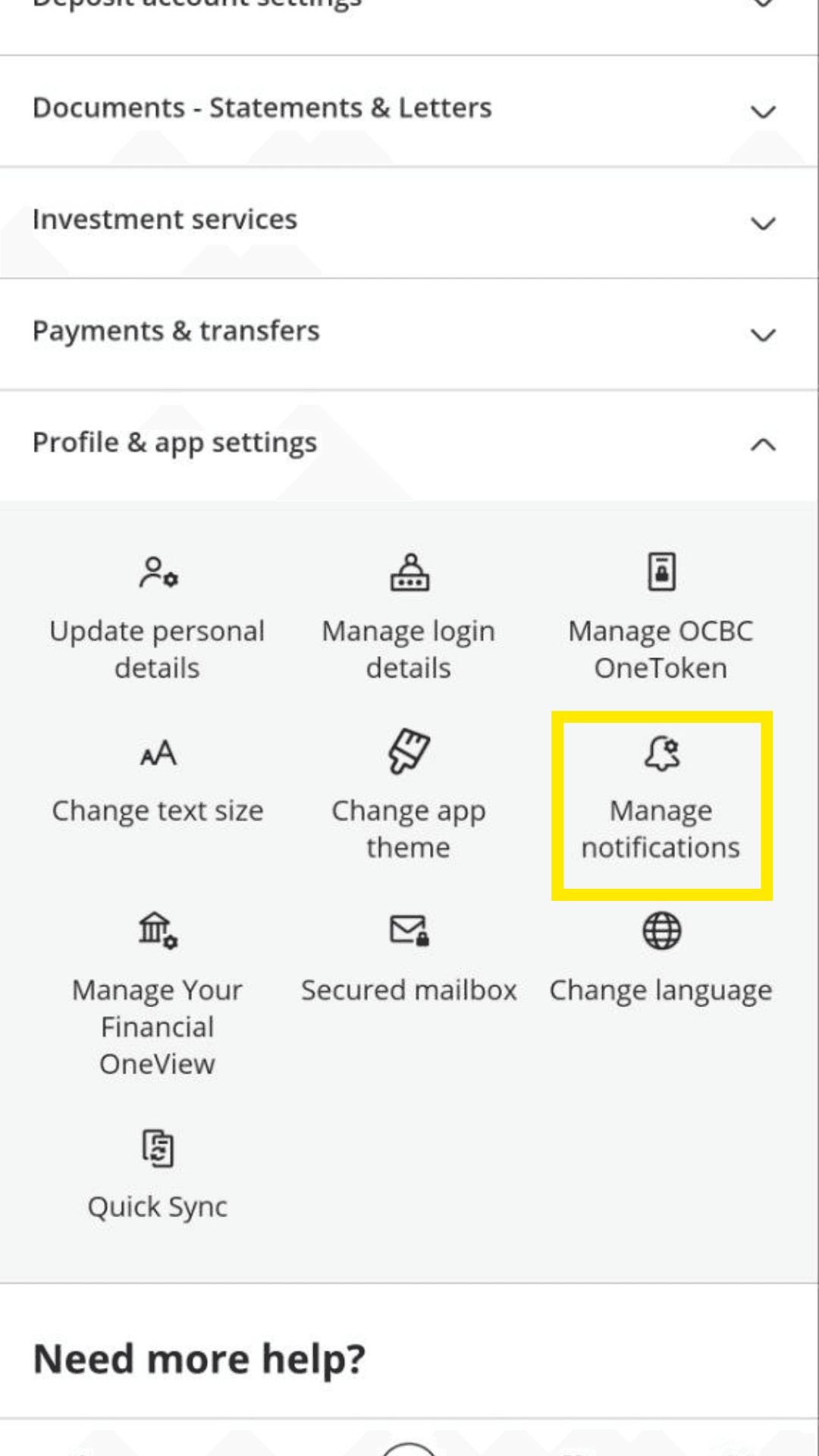
Go to More > Profile & app settings, and click on Manage Notifications.
Step 3
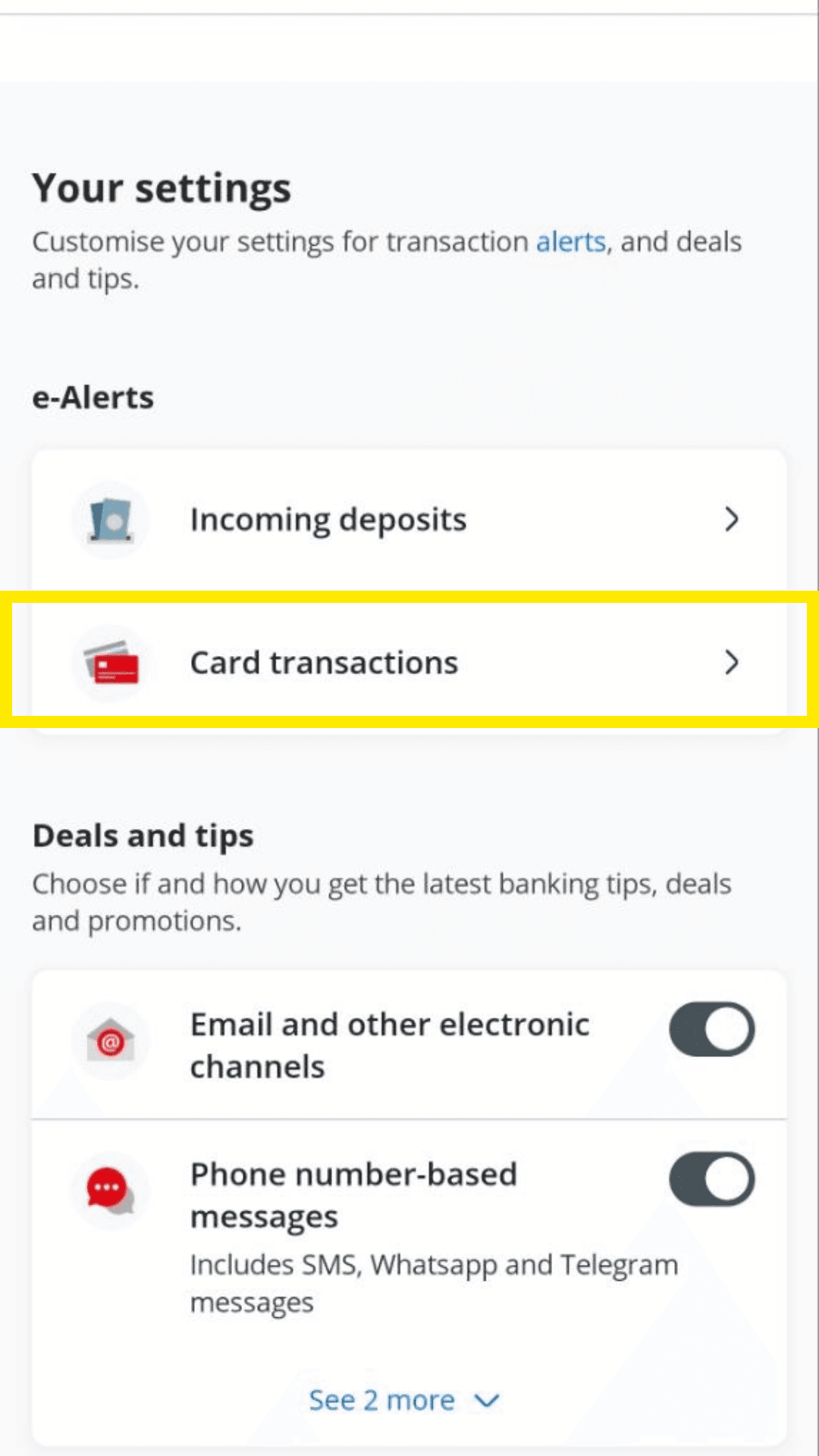
Click on Card transactions under e-alerts.
Step 4
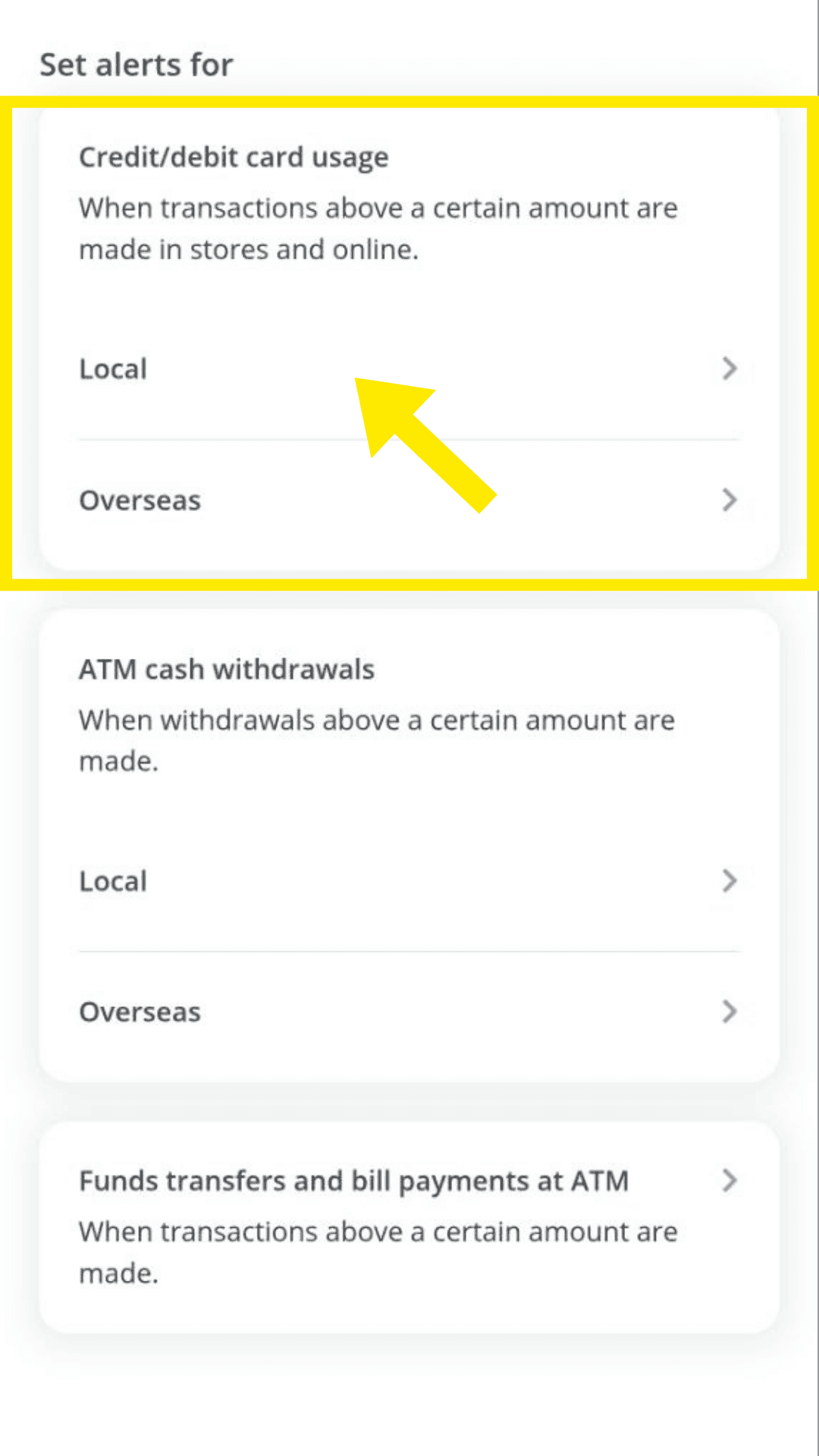
Click on Local under Credit/debit card usage.
Step 5
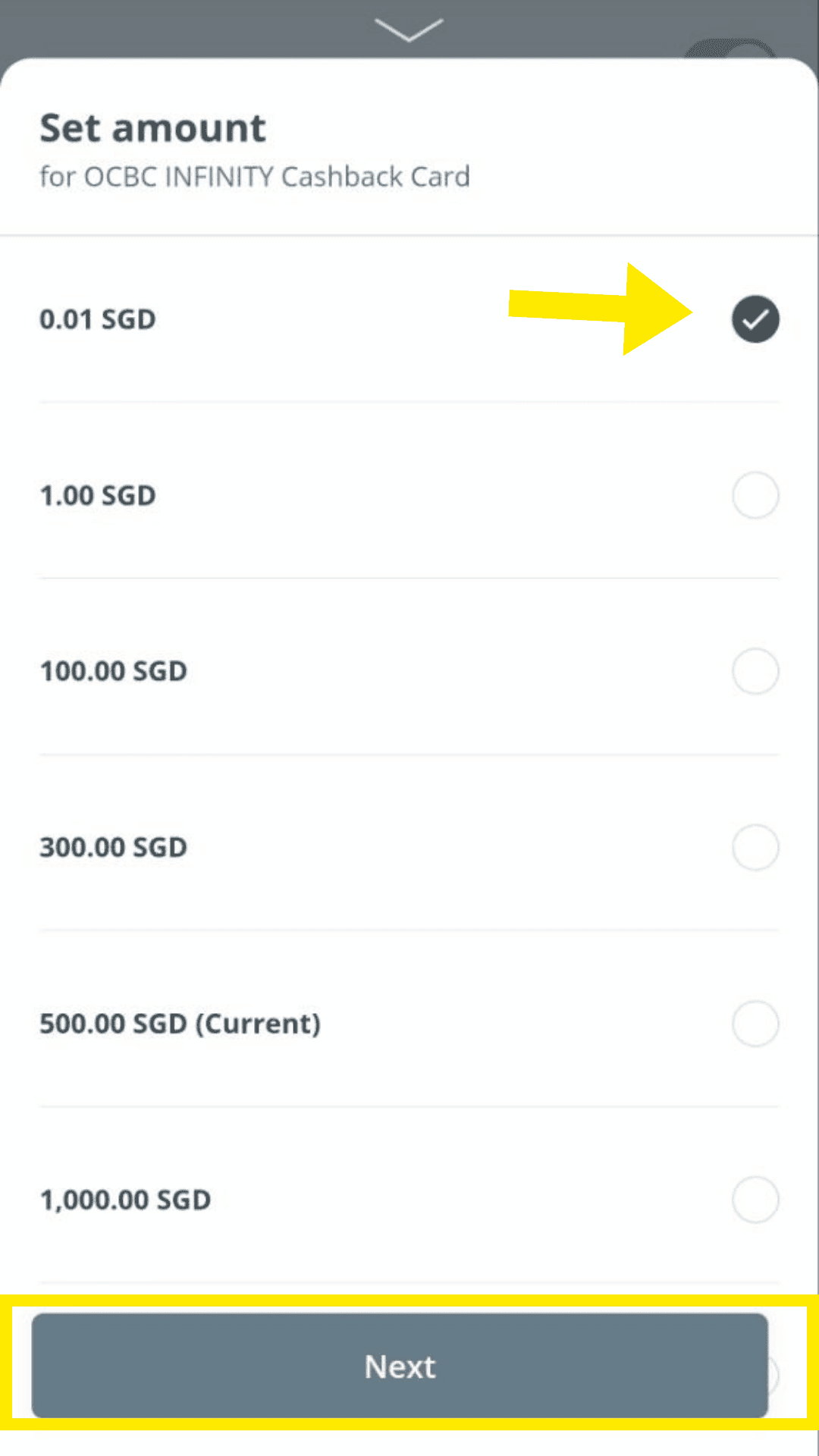
Click on $0.01 to track all transactions, ensure Email notification is enabled and click Next. Make sure the email used is the one you will forward to TeleExpense.
Continue with TeleExpense
After enabling alerts, set up Gmail forwarding so TeleExpense can prepare supported transactions in Telegram for your review.
Set up Gmail forwarding